Git
Git
General
-
git is based on stroring snapshots, not differences
-
every operation is local
-
everything is checksumed (SHA-1)
-
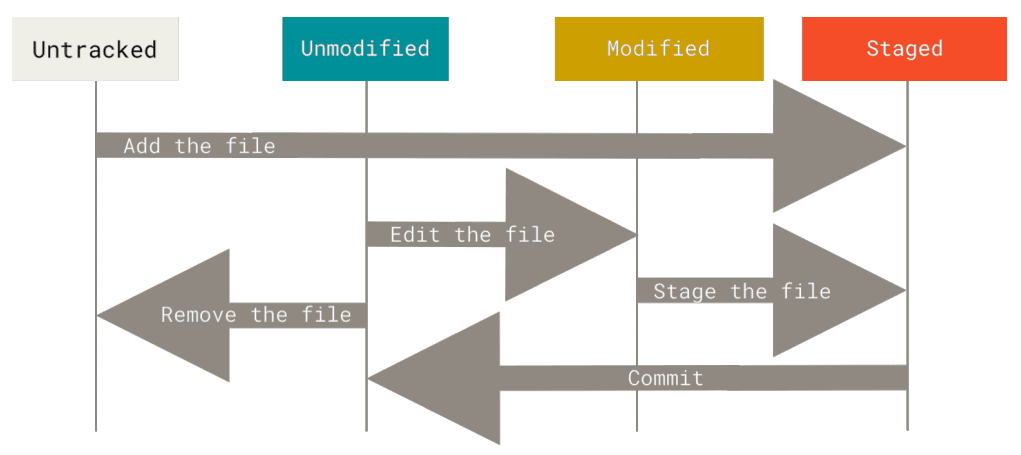
a lifecycle of every file is following:
-
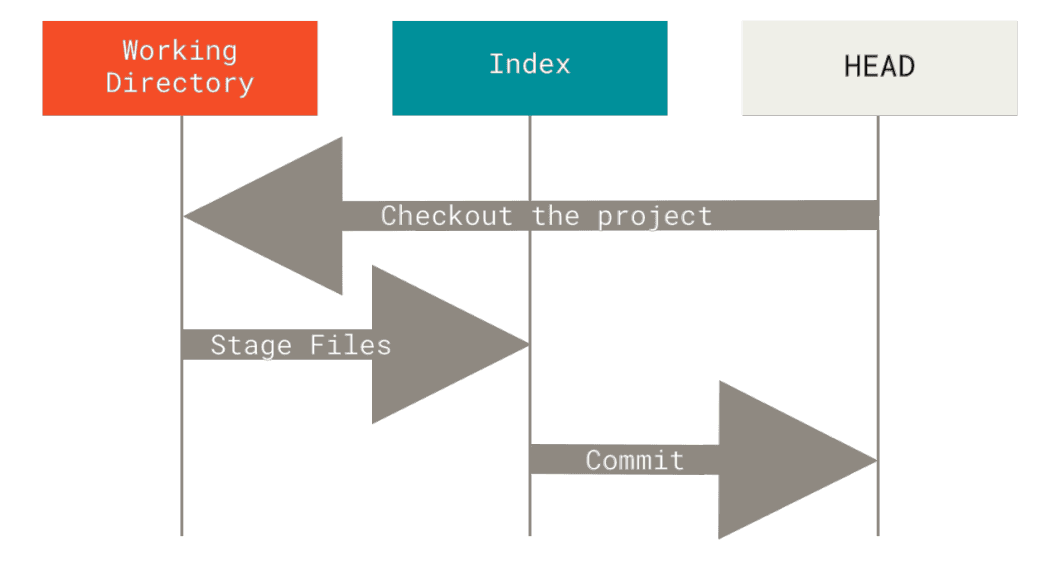
indexis proposed next commit snapshot, that means all files that will go in next commit -
typical workflow looks following:
-
files matches by pattern in
.gitignoreare ignored -
--cached==--staged -
masterfor default branch andoriginfor default remote are just naming conventions, there is nothing special about those names -
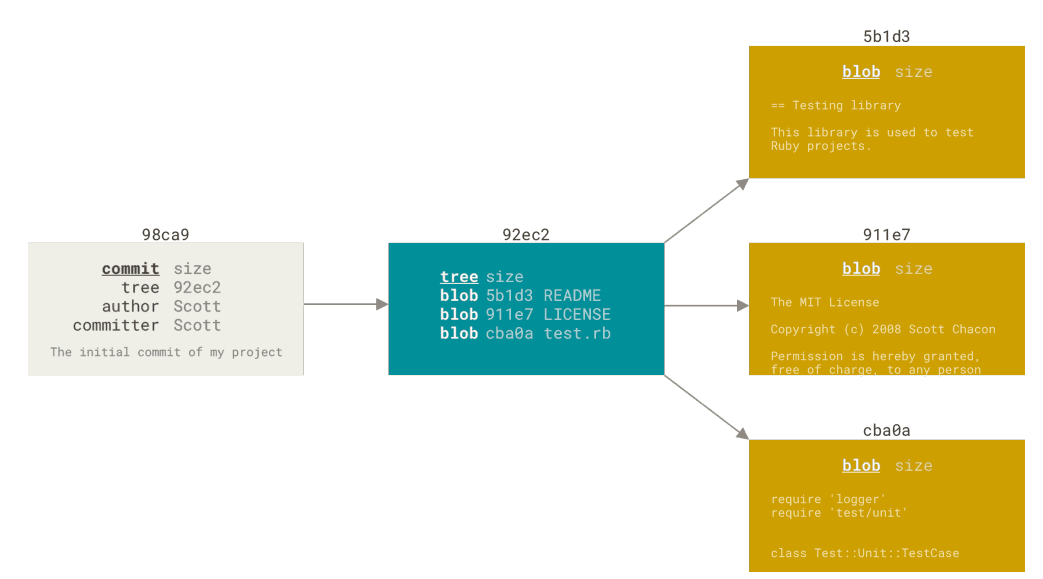
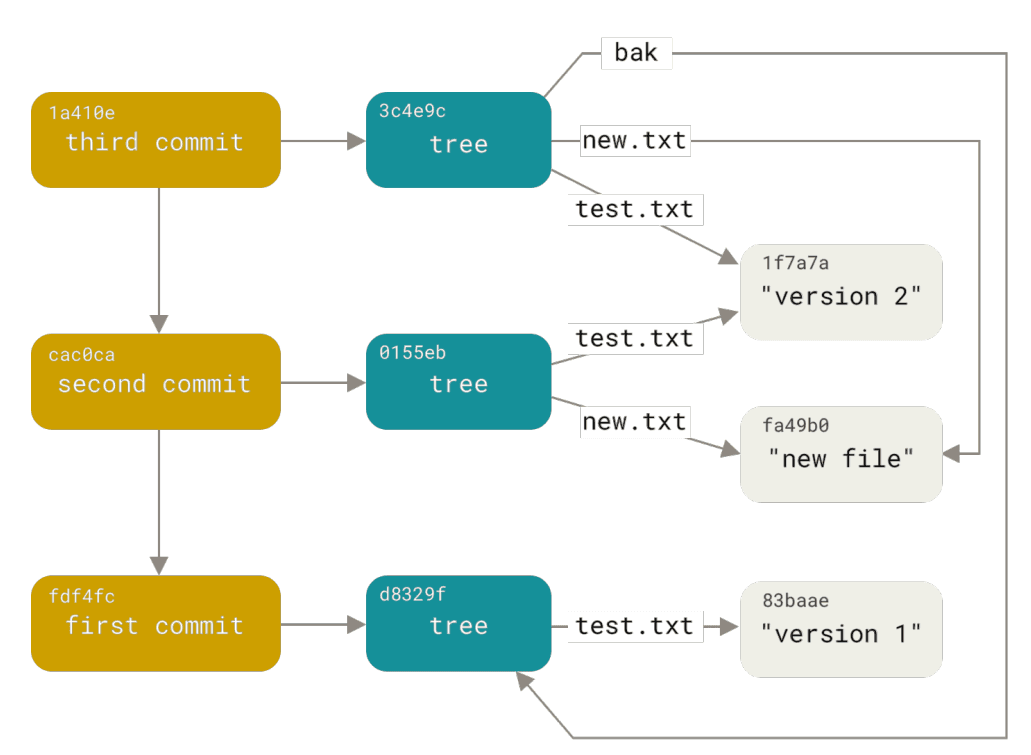
commits as a pointer to snapshot which can consist of many trees (one tree represent one directory), trees are holding pointers to blobs which represent files
-
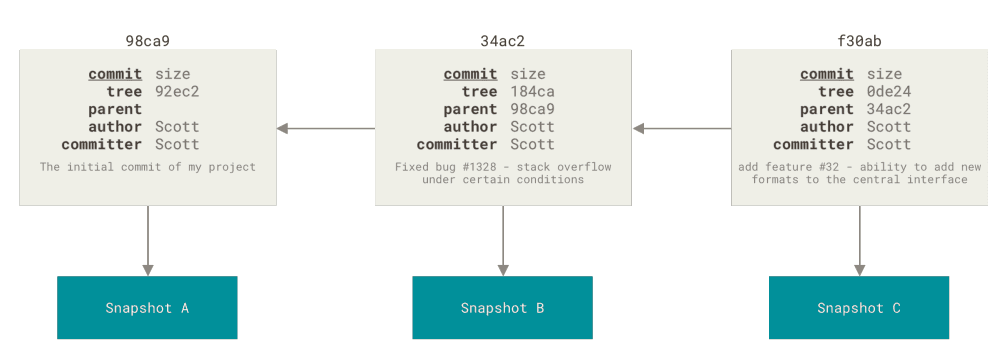
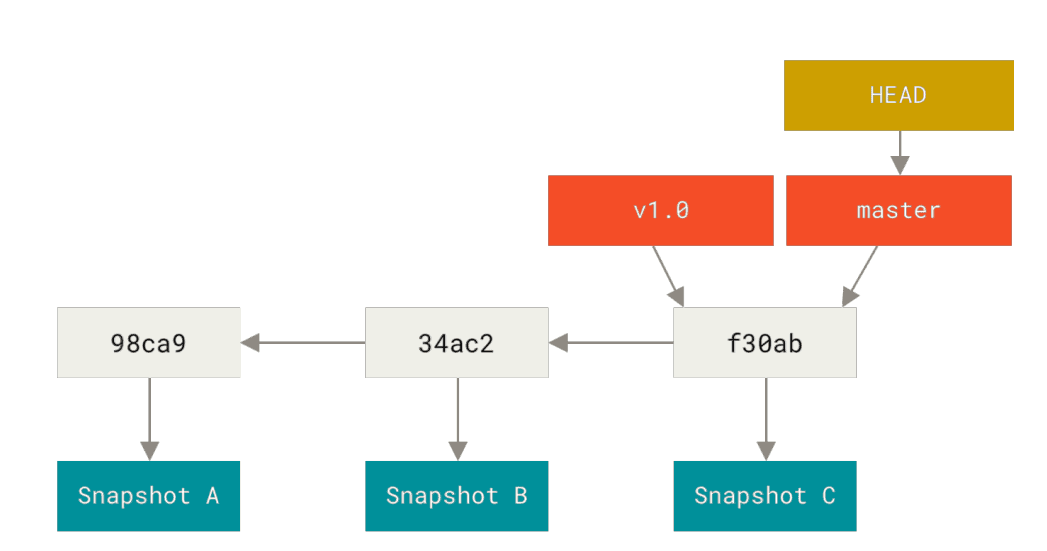
each commit points to a snapshot and parent commit
-
branchis a pointer to specific commit, and nothing more than that -
HEADis last commit snapshots, normally it points to some branch -
-
detached headmeans thatHEADis not pointing to any branch -
all files(blobs) are stored as object under SHA-1 hash
-
if files are common between snapshots, they are shared:
Workflow
- to initialize repo use
git init - to check status of files use
git statusgit status -sfor short output
git addadds files to the index, it adds the file to staging area, but it is also used to start tracking files (as side effect kinda)- to see how file how been modified use
git diff- to see what diffs are stages use
git diff --staged
- to see what diffs are stages use
- to commit what is staged in index, use
git commit -m "commit message"- to stage all modified files in one step add
-aflag:git commit -a -m "message"
- to stage all modified files in one step add
- to remove file use
git rm file, it does 2 things:- untracks file
- removes file from the harddrive
- to untrack file but keep it on disk use
git rm --cached <file> - to move file use
git mv <fromFile> <toFile> - to see the commit history use
git loggit log --graphprints pretty tree
- to modify the last commit that has not been pushed yet, use
git commit --amend- it can update the files and commit message
- to unstage staged file on unmodify modified file use
git restore <file>,- basic version unmodifies file while
git restore --staged <file>unstages
- basic version unmodifies file while
- to work with remotes there is
git remotecommand, in basic form it displays added remote- for move verbose output use
git remote -v - to add remote
git remote add <name> <url> - to fetch info from given remote
git fetch <name>, you can also pull bygit pull <name> - to get more detailed information about given remote, like branch tracking info use
git remote show <remote> - renaming:
git rename <oldName> <newName> - removing:
git remote remove <remote>
- for move verbose output use
- tags are pointers to specific commits, there are 2 types of tags in git:
- lightweight which are similiar to branches, there are just pointers
- annotated tags which are objects and can store additional data
- refer to docs as there are a lot of commands
- keep in mind that tags must be pushed separately, they are not pushed when branch is pushed
- git aliases are a way to create shortcut(alias) for existing command
- to check what is active branch use
git branch- for get more info use
git branch -all - to get all tracking information use
git branch -vv
- for get more info use
- to create new branch use
git branch <name> - to switch between branches (repoint HEAD) use
git checkout <name> - to create a branch and checkout to it in one step use
git checkout -b <name>- to create a new branch based on one on remote use
git checkout -b <name> <remote/name>- the shortcut for that is
git checkout --track <remote/name> - or even
git checkout <name>if there is one remote with given branch name
- the shortcut for that is
- to create a new branch based on one on remote use
- to merge different branch to current branch use
git merge <name> - to delete give branch use
git branch -d <name> - to rename branch use
git branch --move <oldName> <newName> - to push specific branch use
git push <remote> <branch>- to set tracking on remote add
--set-upstreamflag
- to set tracking on remote add
- rebasing is applying series of commits to another branch since common parent commit
- to rebase go to branch that you want to rebase from and use
git rebase <branchRebased>- you dont need to checkout to target branch by
git rebase <targetBranch> <branchRebased> - usually after rebase you will want to fast-forward merge the target branch to move the pointer
git merge <targetBranch>
- you dont need to checkout to target branch by
- rebase can be viewed as alternative to merge
- you can also rebase if there is no common parent commit:
git rebase --onto <targetBranch> <branchWithCommonCommit> <branchBeingRebased>
- to rebase go to branch that you want to rebase from and use
- while
git checkoutresets to which branch HEAD is pointing,git resetresets to which commit the branch pointed by HEAD is pointing- great explanation is in proGit book
git reset --softresets only to which commit the branch is pointing, index and working directory are left untouchedgit reset [--mixed]which is default option, does the previous stuff + it resets the index to snapshot which HEAD is now pointinggit reset --harddoes the previous + resets also working directory to new index, which may LOSE the data, hence its the only one reset that may be dangerous
